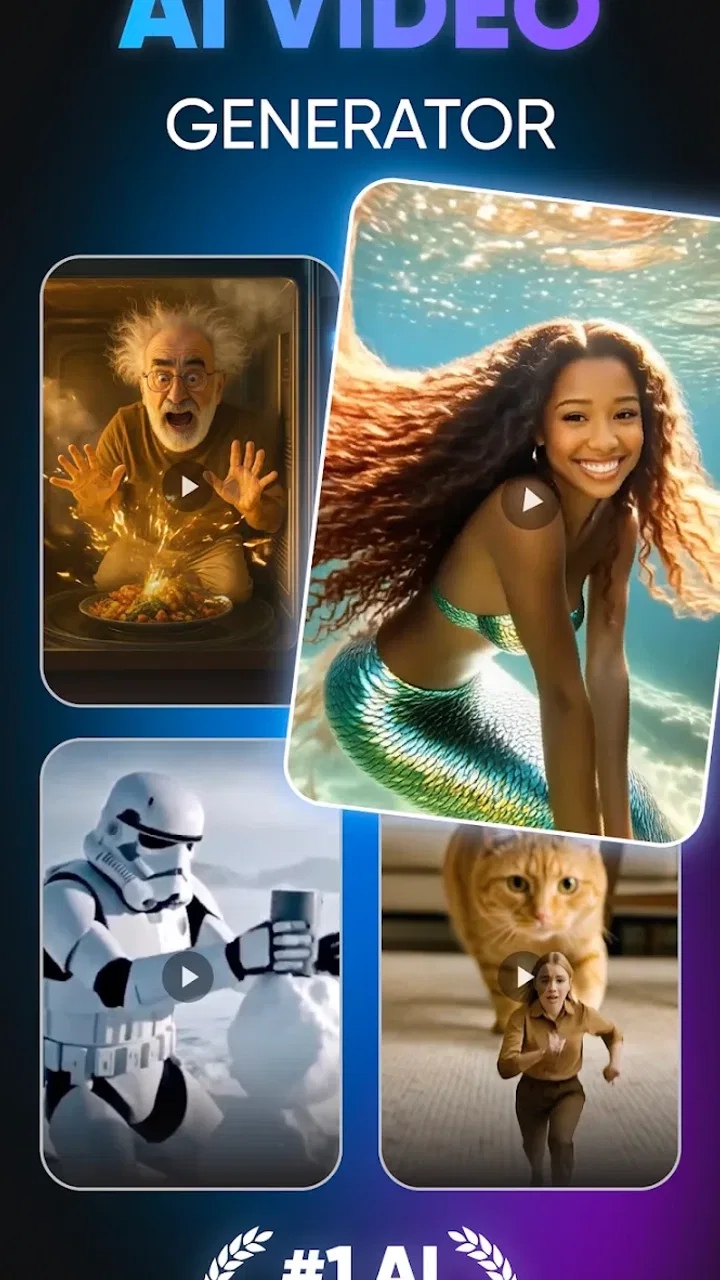
AI Video Photo Generator Videa
- 4.4
- Rating
- 1.00M
- Installs
- Free
- Price

 Analysis by App-foxy
I approached Videa: AI Video Maker, Effects as a quick creative tool rather than a complete video-production suite, and that distinction shaped my opinion from the start. It belongs to the Art & Design category, comes from PURE APPS, and focuses on helping people turn ideas into short visual content with artificial intelligence. My overall impression is positive: it is approachable, useful when I need a fast starting point, and more interesting for experimentation than for careful, frame-by-frame editing.
The app is free to install and is rated for Everyone, which makes it easy to try without committing money immediately. It has reached over one million installs and holds a 4.4 average from around thirty-five thousand ratings, so it is clearly attracting a substantial audience. I would not treat those figures as proof that it will suit every creator, but they do suggest that the basic concept is easy for many people to understand.
What using Videa feels like in practice
The first thing I noticed is that the app encourages an idea-first workflow. Instead of opening with a traditional editing timeline and asking me to organize clips, it points me toward creating a visual result from a concept. That is a useful change of pace when I have a simple thought in mind but no finished footage. I can think in terms of a mood, subject, or visual direction rather than worrying about cuts before I have anything worth cutting.
You May Also Like

 Blood Strike: 2.5 Anniversary
Blood Strike’s Loadouts Turn Every Drop Into a Tactical Gamble
A close look at Blood Strike’s custom loadouts: how fast access to signature weapons reshapes its battle royale rhythm, rewards preparation, and narrows the gap between fights.

 Pandora - Music & Podcasts
Pandora’s Music Is Easy to Start, but Harder to Recover
Pandora’s strength is its low-effort path from a seed to a station. Its weak spot is how much confidence it asks you to place in connection, setup, and quiet recovery.

 8 Ball Pool
 Is Built on Rivalries, Rematches, and Routine
A close look at the rivalries, rematches, shared routines, and unanswered safety questions that turn a quick pool match into a persistent mobile community.

 Samsung Music
’s Quiet Strength Is Playing What You Already Own
Its reach comes less from spectacle than from dependable access to a personal library. That simplicity is both the app’s strongest retention engine and its ceiling.

 AccuWeather: Weather Radar
AccuWeather Review: A Quick, Clear Forecast for Everyday Decisions
For everyday plans, the best forecast is the one you can understand quickly. AccuWeather makes rain timing, radar, and local conditions easy to act on, with a few trade-offs.

 Hill Climb Racing
Why Hill Climb Racing Still Turns Crashes Into One More Run
A tiny car, a bumpy hill and one more upgrade: Hill Climb Racing keeps resurfacing because its simple chaos makes every near-miss feel personal.
More From Our News Desk



That makes it especially appealing for social posts, visual experiments, mood boards, and quick concept pieces. If I want to explore how a scene might look before spending time filming it, an AI video maker can remove much of the initial friction. I still need to guide the result carefully, but the app gives me somewhere to begin instead of leaving me with a blank project.
My strongest recommendation is to treat each generation as a draft, not as a final answer. The most effective workflow is to start with a focused idea, inspect what the app produces, then adjust the wording or direction rather than trying to describe an entire film in one attempt. Shorter, clearer instructions are easier to evaluate. They also make it simpler to understand which part of the concept helped or hurt the result.
For example, if I were preparing a short invitation for a local event, I would not begin with a long paragraph containing the venue, schedule, visual style, audience, music mood, and several transitions. I would first establish the central visual idea, create a draft, and only then work on supporting details. This staged approach is less exciting than pressing a button and hoping for perfection, but it gives me much more control over the creative direction.
Where the app is genuinely useful
Videa works best when speed and visual discovery matter more than exact production control. I can imagine using it to create a rough background for a presentation, test a visual identity for a small project, or make a short clip to accompany a message. It is also a practical option for people who have plenty of ideas but limited experience with conventional editing software.
There is value in the app’s low entry barrier. Traditional video editors often make beginners think about aspect ratios, tracks, keyframes, codecs, and timing before they have learned what kind of video they actually want to make. An AI-focused tool reverses that order. I can begin with the creative intention and learn the technical side gradually.
That does not mean the technical side disappears. It simply becomes less intimidating at the beginning. I still need to review the output, decide whether it communicates the intended idea, and make sure it is appropriate for the audience. The app can accelerate the first stage of creation, but it cannot replace taste, editing judgment, or a clear purpose.
One less obvious strength is its usefulness as a visual thinking aid. I do not always need a polished video; sometimes I need to see whether an idea has potential. Producing a rough result can reveal that a concept is too vague, visually crowded, or difficult to express. In that sense, the app can help with planning even when I eventually finish the project somewhere else.
The trade-off behind fast AI creation
The same automation that makes Videa approachable also limits precision. When I use a conventional editor, I know which clip I am moving and which part of the composition I am changing. With AI generation, the relationship between an instruction and the final result is less predictable. A small wording change can alter the whole feel of a scene, while a carefully imagined detail may not appear in the way I expected.
This is the main weakness I would explain to a friend before recommending it. The app can help me reach an attractive direction quickly, but it is not the right choice when every visual detail must match a strict brief. A business presentation with exact brand requirements, a product demonstration that must show a particular feature accurately, or a project requiring consistent characters across multiple scenes may be better handled in a conventional editor or a more specialized production tool.
I also found that AI-generated work benefits from restraint. Asking for too many subjects, actions, styles, and changes at once makes the result harder to judge. A useful habit is to separate the creative decisions: establish the subject first, then refine the atmosphere, then consider how the clip will be used. This is one of the app’s most important practical lessons because it turns vague experimentation into a repeatable process.
Another trade-off concerns originality and personal input. A generated result may look impressive at first glance, but it can still feel generic if I accept the first version without adding my own direction. I get better value when I use the output as raw material and make deliberate choices about the message, pacing, and context. The app is strongest as a collaborator for brainstorming, not as a substitute for a creator’s point of view.
A realistic everyday workflow
Imagine I am helping a friend promote a weekend workshop. I have a short description, perhaps a few photos, and no time to learn a complex editing program. I could use Videa to explore a visual concept that communicates the workshop’s atmosphere, then review the result on a phone before deciding whether it is suitable for a social post. If the first attempt feels too busy, I would simplify the idea instead of adding more instructions.
After choosing a direction, I would check the clip for clarity. Does the visual support the workshop, or is it merely attractive? Does it leave enough room for any text I plan to add later? Is the tone appropriate for the intended viewers? These checks are important because AI tools tend to reward visual novelty, while a useful promotional clip also needs to communicate information.
For that scenario, Videa would be valuable even if I eventually move the result into another editor. It can help me discover a look quickly, while a separate tool may be better for exact text placement, trimming, sound balancing, or final export decisions. That combination is more realistic than expecting one mobile app to handle every stage equally well.
I would also save time by preparing several short concepts rather than repeatedly rewriting one complicated request. Comparing simple directions side by side makes it easier to spot the strongest idea. This approach is particularly helpful for people who are not confident writers: the goal is not to produce a perfect technical brief, but to describe one visual intention at a time.
Who should use it and who should skip it
I think Videa is a good match for casual creators, students, social media users, small project teams, and anyone curious about AI-assisted video. It is also suitable for people who want a fast way to turn a mental image into something visible. The Everyone content rating makes it approachable for a broad audience, although younger users should still have a sensible adult conversation about creative tools and online sharing.
It is less suitable for an editor who wants a full manual timeline, detailed control over every transition, or a dependable workflow built around existing footage. If my priority is precision rather than exploration, I would choose a traditional mobile editor. Those apps may take longer to learn, but they usually make each change more explicit and repeatable.
I would also hesitate to recommend it as the only tool for professional client work. A client may ask for exact revisions, consistent visual elements, or a clear explanation of how a result was assembled. AI generation can be useful during ideation, but the final process may require tools that offer more predictable control. Videa is better positioned as a creative accelerator than as a complete replacement for an established production workflow.
Cost is another point worth considering. The app is free, but in-app purchases range from around three dollars to more than one hundred dollars per item. That wide range means I would try the free experience first and only spend money after deciding whether the results fit my regular needs. I would not purchase simply because a single generated clip looks promising; I would test whether the app saves me time across several projects.
The current version is 1.11.1, and it runs on Android 7.0 or later. That gives it a relatively broad device reach, although the experience can still depend on the phone’s performance and the complexity of the work. I would make sure the device has enough free space and a stable connection before starting an important project, rather than discovering technical friction at the moment I need to share a finished clip.
How it compares with familiar alternatives
Compared with a standard video editor, Videa places creative generation before manual assembly. That is its clearest identity. A conventional editor is usually better when I already have footage and know exactly how I want to arrange it. Videa is more useful when I have an idea but lack suitable footage, or when I want to explore several visual directions quickly.
Compared with template-based video apps, it offers a different kind of starting point. Templates are efficient when I want a proven layout and predictable structure. An AI video tool is more flexible for unusual concepts, but that flexibility can produce less consistent results. I would choose a template when speed and reliability matter most, and Videa when I want to discover something that does not fit a preset design.
Compared with desktop creative software, the app is naturally more convenient for quick experiments on a phone. The trade-off is depth. Desktop tools are usually stronger for detailed compositing, careful sound work, color decisions, and long-form projects. Videa makes more sense for short-form creation and early-stage visual development than for a complex production that needs a large, organized workspace.
The practical conclusion is that Videa does not need to beat every alternative at every task. Its value comes from occupying a specific middle ground: faster than traditional production, more open-ended than fixed templates, and easier to approach than advanced desktop software. Once I understand that role, the app becomes easier to judge fairly.
Small habits that improve the results
I get better outcomes when I decide the purpose of the clip before opening the app. A video intended to create atmosphere needs a different direction from one meant to explain an event. Defining the purpose prevents me from judging the result only by its visual polish. A beautiful clip that communicates nothing is still a weak result.
I also recommend reviewing generated work without immediately sharing it. Look for distracting movement, unclear subjects, awkward changes, and details that could confuse viewers. This pause is especially important when the clip is made for a public account or connected to someone else’s project. Fast creation should not mean careless publishing.
Finally, I would keep a small record of the wording and ideas that produced useful results. That makes experimentation less random. Over time, I can build my own vocabulary for describing moods, compositions, and visual priorities. The app then becomes more valuable because my input improves, rather than because I am relying on luck.
These habits also answer a question many first-time users have: can the app make the creative decisions for me? In my experience, it can suggest a direction, but the best results still come from a person who knows what the video is supposed to achieve. The more specific my purpose and the more carefully I review the output, the more useful the tool becomes.
My final recommendation
Videa: AI Video Maker, Effects is a worthwhile free starting point for people who want to experiment with AI-assisted video without first learning a demanding editing system. PURE APPS has created something that feels most convincing when I use it to turn an idea into a visual draft, test a mood, or find a direction for a short piece of content.
Its limitations are just as important as its strengths. It does not give me the same certainty as manual editing, and it should not be treated as a magic solution for precise commercial work. The broad in-app purchase range also makes it sensible to explore the free experience carefully before paying. For detailed control, consistent production, or footage-heavy projects, another editor may be the better choice.
For casual creators and curious beginners, though, I can recommend giving it a fair trial. Start with one clear idea, compare a few simple variations, inspect the result critically, and use the strongest version as a draft rather than assuming it is finished. If that workflow matches what you need, Videa can make the first step into video creation feel considerably less intimidating.
FAQs for AI Video Photo Generator Videa
01What features does Videa: AI Video Maker, Effects offer?
Videa: AI Video Maker, Effects provides a robust suite of video editing tools powered by AI. Users can access features like automatic scene detection, smart transitions, and a variety of stunning effects to enhance their videos. The app also supports various export options, making it suitable for both personal and professional use.
02Is Videa suitable for beginners in video editing?
Yes, Videa is designed to cater to all skill levels, including beginners. The intuitive interface and AI-driven features simplify the editing process, allowing users to create professional-quality videos with minimal effort. Tutorials and guides are also available to help new users get started quickly.
03Does Videa require an internet connection to function?
While many features of Videa can be used offline, an internet connection is required for certain functionalities, such as downloading updates, accessing cloud-based assets, and sharing videos directly through the app. Users should ensure they have access to the internet for a seamless experience.
04Are there any in-app purchases or subscription fees?
Videa offers a free version with basic features, but users can opt for a premium subscription to unlock advanced tools and effects. The subscription provides access to exclusive content, removes ads, and offers priority support. Pricing details can be found within the app or on the official website.
05What are the system requirements for Videa?
Videa is compatible with most modern Android and iOS devices. It requires a minimum of Android 8.0 or iOS 12.0 to run smoothly. Users should also ensure they have sufficient storage space, as video projects can take up significant memory. Regular updates enhance performance and add new features.
Pros
- Easy-to-use interface for quick editing.
- Wide range of AI-powered effects.
- Supports HD export without quality loss.
- Frequent updates with new features.
- Integrates smoothly with social media platforms.
Cons
- Limited free version capabilities.
- Occasional glitches on older devices.
- Some features require in-app purchases.
- Watermark on videos in the free version.
- Heavy battery usage during editing.

AI Video Photo Generator Videa
Gallery